
Free Paint by Number Generator
Make paint by number templates from any photo instantly with our 100% free paint by number generator. Upload a picture, choose 4 to 24 colours, and get a numbered outline with a printed palette, regions kept large enough to actually paint, in seconds. No signup, no downloads needed. Trusted by 60,000+ artists worldwide.
How much work is it
A kit. Reads as the photograph, paintable in an evening.
Palette
Printing it
No part of the sheet will be narrower than this once it is printed at the size above — not the small regions and not the long thin ones. Match it to the narrowest brush you own.
The sheet
A palette found in your own photograph
Colours are clustered out of the picture itself in CIELAB rather than matched to a fixed set, because a seascape and a portrait need different paints and because RGB distance puts two skin tones in one bin. Every region then too small for the brush you named is merged into the neighbour nearest it in colour, smallest first, until nothing on the sheet is under the threshold.
7 controls, not a fixed result
Set colours, flatten texture, narrowest area to paint and outline weight, choose paper and export resolution, toggle number the regions. Every change redraws over your own photograph, in this page's own document.
Part of the lattices & pattern set
The picture you have open here is ready for hexagonal grid generator, dot grid generator and triangular grid generator, and 7 more in the group — nothing to re-upload, because nothing was uploaded.
Hexagonal grid generatorDot grid generatorTriangular grid generator
A template, and the palette to mix
The numbered outline prints black on white as a PNG at up to 600 dpi, as vector SVG that enlarges without softening, or as a two-page PDF with the colours on a sheet of their own rather than on the one you paint over. The threshold is a width in millimetres on the paper you chose, so it means the brush in your hand.
- 100% free
- No signup
- No watermark
- Nothing is uploaded
Choose how many colours and how small an area is still worth painting. The picture is quantised, the speckle removed, the regions outlined and numbered, and the palette printed alongside so the numbers mean something.
The paint by number generator draws one of the 82 composition overlays in Grid Maker Pro, and the rest stack on the same image.
- 4–24 colours
- Regions, not pixels
- Palette listed
- Nothing uploaded
What is a paint by number generator?
A paint by number generator converts a photograph into a template of flat outlined areas, each numbered to match a colour in a palette. This one picks the palette from the photograph itself using k-means clustering, removes single-pixel speckle with a majority filter, finds connected regions by flood fill, numbers each one at its centre and drops regions too small to paint. It runs entirely in the browser and nothing is uploaded.

How to make a paint by number template from a photo
A photograph reduced to flat regions with a cell grid over them, so the template you paint from has boundaries you can actually follow with a brush.
Drop in a photograph with clear shapes
A paint by number generator wants strong, simple forms: portraits, pets, landscapes with clear masses and still lifes all work. What does not work is anything whose subject is texture — foliage, fur at close range, crowds — because texture becomes hundreds of tiny regions and the template turns to confetti.
JPG · PNG · GIF · WEBP
Set the colour count
This is the main control. Eight to twelve gives a poster-like result that is quick to paint; sixteen to twenty-four holds more of the photograph and takes considerably longer. The colours are taken from your picture, so a sunset and a portrait get different palettes.
Columns · Rows · Cell labels
Raise the smallest area until it is paintable
Every region narrower than this is merged into the neighbour nearest it in colour, smallest first, until nothing on the sheet is under it. The threshold is a width in millimetres on the paper you picked, so set it to the smallest brush you own — this is the difference between a usable template and a technically correct mess.
PNG · JPG · PDF · SVG · up to 600 DPI
Three steps, about a minute. No signup, no upload.
What the Paint by Number Generator does
The palette comes from the picture
Colours are found by clustering the photograph's own pixels rather than matched to a fixed set. A seascape gets blues and sands; a portrait gets skin tones. A fixed palette would force both through the same twenty-four swatches.
Seeded far apart, not at random
k-means with random seeding on a photograph reliably produces two near-identical greys and one unused bin. Seeding each new centre at the point furthest from the existing ones spreads the palette across the picture's actual range.
Speckle removed before regions are found
Straight quantisation leaves isolated pixels scattered along every boundary. A 3×3 majority vote absorbs them into their surroundings while leaving real edges intact, which is what stops the outline stage producing noise.
Numbers at region centres
Each connected area is found by flood fill and numbered at its own centroid, so a colour appearing in six separate places gets six numbers. Numbering once per colour would leave most of the sheet unlabelled.
A minimum you control
Regions below the threshold keep their outline but lose their number. An unpaintable four-pixel island with a digit on it is worse than a slight loss of fidelity, and where that line falls depends on how big you are printing.
See it painted before you paint it
The finished-look view shows the quantised image in full colour, which is what the template becomes when completed. It is the fastest way to judge whether the colour count is right before printing anything.
Paint by number generator examples: four settings, four outcomes
Paint by number generator vs 8–12 colours vs 16–20 colours
| Option | Look | Regions | Time to paint | Best for |
|---|---|---|---|---|
| 4–6 colours | Graphic, poster-like | Few and large | An hour or two | Children, bold subjects |
| 8–12 colours | Recognisably the photograph | Moderate | An evening | Most subjects |
| 16–20 colours | Close to the original tones | Many, some small | Several sessions | Portraits, detailed work |
| 24 colours | Near-continuous tone | Very many | Long | Large prints only |
Who a paint by number generator is for: people who are going to pick up a brush
How a paint by number generator works — Colour quantisation, connected regions, and why most generated templates are unpaintable
Reducing a photograph to twelve colours is a solved problem with well-known algorithms. Like the coloring page generator and unlike the 82 composition overlays, this one rewrites the picture rather than laying a construction over it. Producing something a person can actually paint is a different problem, and it is mostly about what happens after the colours are chosen.
Where paint by numbers came from
For a line drawing without the colour regions the coloring page generator is the tool, and to copy a picture by hand instead the rectangular grid tool divides it into cells. The commercial form was created in 1950 by Dan Robbins, working for the Palmer Paint Company in Detroit, who has said the idea came from an account of Leonardo giving numbered sections to apprentices to complete. The kits were an immediate commercial success and became a cultural fixture of the decade.
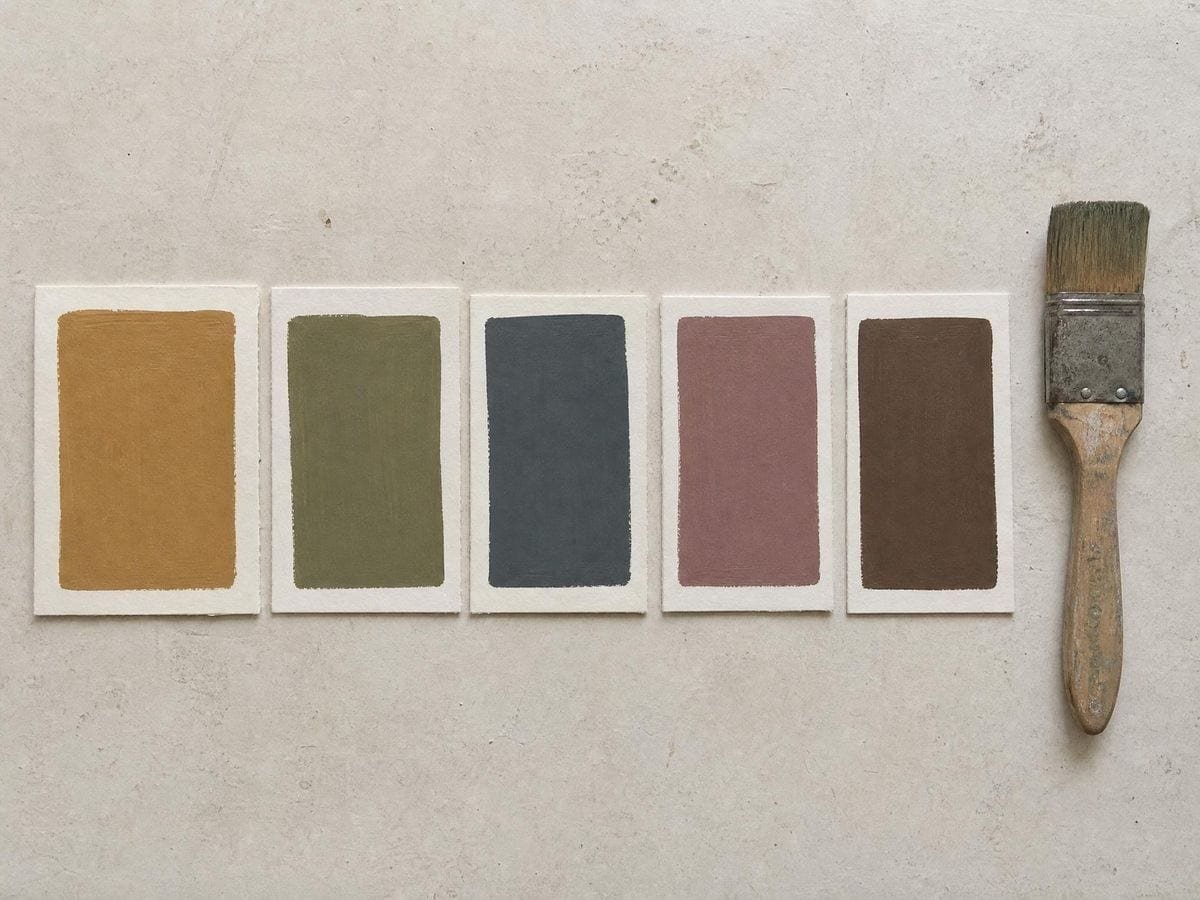
What made them work was never the algorithm — there was none — but the design. A commercial kit has a modest number of colours, regions large enough for a brush, and shapes that read as something recognisable even before they are filled. Those three properties are exactly what an automatic generator has to reproduce.
Choosing the palette: why k-means, and why the seeding matters
Quantisation means finding a small set of colours that represents a much larger set with the least error. k-means does this by iterating: assign every pixel to its nearest centre, move each centre to the average of the pixels assigned to it, repeat until it settles.
The weakness is the starting position. Seed the centres at random and two of them frequently land close together in a photograph's dominant tone — a portrait is mostly skin and background, so random seeding gives several skin bins and none for the eyes. The palette then has twelve entries and eight useful ones.
Seeding by farthest point fixes this. The first centre is taken from the image, and each subsequent centre is placed at the pixel furthest in colour from every centre so far. The result spreads across the picture's actual colour range before the iteration begins, which is why small palettes still capture the dark accents that carry a photograph.
The clustering here runs in RGB, which is not perceptually uniform — equal distances in RGB do not look equally different. Working in a perceptual space such as CIELAB gives measurably better palettes at the same colour count. RGB is used because it is fast enough to re-run on every slider move, and the difference matters less once the count is above about ten.
Speckle, and the majority filter
Straight quantisation produces a label for every pixel, and along any soft gradient the labels alternate. A cheek shading from one skin tone to the next becomes a band of interleaved pixels rather than a boundary, and outlining that produces a field of noise.
A majority filter replaces each pixel's label with whichever label is commonest in its 3×3 neighbourhood. Isolated pixels are outvoted and absorbed; a real edge, where one side genuinely dominates, survives. It is a crude operation and it is the single biggest improvement to the output.
Regions are not colours
This is the distinction most generators miss. Twelve colours does not mean twelve areas — a single blue might appear in the sky, in a reflection and in a shadow, as three separate places on the sheet. Numbering by colour would put one "3" somewhere in the picture and leave the other two areas unmarked.
Finding connected regions requires a flood fill: start at an unvisited pixel, spread to every neighbour sharing its label, and record the extent. Each region found that way gets its own number at its own centre of area, which is what makes the sheet followable.
The centroid is not always inside the region — a crescent's centre of area falls outside it — but for the compact regions that survive an area threshold it is reliable, and it is far better than placing the number at a bounding-box centre.
The minimum area is the honesty control
A photograph quantised to twelve colours produces thousands of connected regions, most of them a handful of pixels along a boundary. They are real in the data and meaningless on paper: nobody paints a four-pixel island, and a number printed on one is illegible.
Setting a minimum area and leaving smaller regions unnumbered is what converts the output into a template. It loses fidelity, deliberately. The right value depends on the printed size — a sheet printed at A3 can carry smaller regions than the same template at A5 — which is why it is a control rather than a constant.
Which photographs work
The subjects that work have strong, simple forms with clear tonal separation: portraits with directional light, animals against plain backgrounds, buildings, boats, still lifes. Anything where you could describe the picture in a dozen shapes will quantise into a dozen paintable areas.
Texture is the enemy. Foliage, fur, gravel, crowds and water surfaces all carry their information in high-frequency detail, and quantisation turns that into thousands of tiny regions. Raising the minimum area helps but eventually removes the subject along with the noise.
Low-contrast photographs are the other difficult case. If the whole picture sits in a narrow tonal band, the clustering has little to separate, and the template comes out as a set of shapes that look almost identical when painted — technically correct and visually flat.
Painting from the output
The plain drawing grids cover the by-hand alternative, and the square grid page is where that starts. The palette list gives each number its colour as a hex value, which is a starting point for mixing rather than a paint-shop code. Matching acrylics or oils to a hex value is a judgement, and it is usually easier to mix toward the finished-look preview than to match the swatch exactly.
Working from the largest regions to the smallest, and from darkest to lightest, is the conventional order. It keeps the sheet readable for longest, because the numbers on the small regions are the last thing you need and the first thing to be covered.
Where a paint by number generator gets used
Personal projects from family photographs and pets, which is most of the demand. A moderate colour count and a generous minimum area gives something finishable in an evening or two.
Classroom colour theory, where reducing a photograph to eight colours and painting it teaches how few tones a recognisable image actually needs.
Mural and set-painting planning, where a quantised version of a design tells a team how many mixed colours to prepare before anyone starts.
Paint by number generator: frequently asked questions
The geometry
What is a paint by number generator?
A paint by number generator turns a photograph into a template of flat outlined areas, each numbered to match a colour in a palette. The palette here is taken from the photograph itself rather than from a fixed set of paints.
Why do some regions have no number?
Regions below the minimum area keep their outline and lose their number, because nobody paints a four-pixel island and a digit printed on one is illegible. Raise or lower the threshold to suit the size you are printing at.
My template is a mess of tiny shapes. What went wrong?
The photograph is texture-dominated — foliage, fur, gravel or water. Quantisation turns high-frequency detail into thousands of small regions. Raise the minimum area, lower the colour count, or choose a subject with stronger simple forms.
Can I match the palette to real paint colours?
The palette lists a hex value for each number, which is a starting point for mixing rather than a paint code. In practice it is easier to mix toward the finished-look preview than to match a swatch exactly.
Which photographs work best?
Strong simple forms with clear tonal separation — portraits with directional light, animals against plain backgrounds, buildings and still lifes. Low-contrast pictures quantise into shapes that look nearly identical when painted.
Can I get the outlines without the numbers?
Yes — turn off the numbering and the template prints as outlined regions only. That suits a painter who intends to choose their own colours rather than follow a key.
Using it
How many colours should I choose?
Eight to twelve for a result that is recognisably the photograph and finishable in an evening. Four to six gives a bold poster look. Sixteen and above holds more tone but produces many more regions and takes considerably longer to paint.
Why does the same colour have several different numbers on the sheet?
It does not — the same colour has the same number wherever it appears. What varies is that a colour appearing in several separate places gets numbered in each of them, because each connected area needs its own label.
Can I match the palette to paints I actually own?
Not directly — the palette is derived from the photograph by clustering, so the swatches are the picture's own colours. Read the swatch values off and mix or match to them; the numbering stays valid however you interpret each colour.
Export and print
What size should I print it at?
Larger is easier. The minimum paintable area is a pixel measurement, so the same template printed at A3 has physically larger regions than at A5. If regions look too small, print bigger before lowering the colour count.
Can I get the outlines and the numbers as separate sheets?
Export twice with the labels on and off — one sheet to paint, one to read the key from. Painting from a sheet with numbers printed inside every region means painting over the numbers, which is exactly when you stop being able to check what goes where.
Should I export vector or raster for printing?
SVG if you are enlarging beyond your export size, raster otherwise. The regions are flat areas with hard edges, which rasters handle well at true size and soften as soon as they are scaled up — and a paint-by-number outline that has gone soft is one you cannot paint to.
Choosing a grid
Should I use this or the coloring page generator?
This if you want a prescribed palette and numbered regions; the coloring page generator if you want outlines and free choice of colour. This one decides in advance what goes where, which is the point for a guided study and the opposite of the point for a child.
How many colours make a usable template?
Eight to twelve, which reads as a picture and takes an afternoon to paint. Four to six is a poster; twenty-four is a template with regions too small to get a brush into, which is the commonest reason one of these ends up unfinished.
Practical matters
Is it free, and do I need an account?
It is free and there is no account. Nothing is watermarked or metered.
Does my photograph get uploaded?
No. The picture is decoded and processed inside this page. There is no server, so there is nowhere for it to be sent.
Does it work on a phone?
Yes, though the processing is heavier than the other tools here because the clustering runs over the whole picture. Images are scaled down before processing to keep it responsive.
Can I sell kits made from my own photographs?
Yes, if the photographs are yours to use. Nothing here is watermarked and the terms leave your work with you — but converting somebody else's photograph into a template does not make it yours, and that is the case worth being careful about commercially.
Open the tool Paint by number generator
A photograph, in areas you can fill
Set the colours, set the smallest paintable area, print the template and its palette. Nothing uploaded.
Back to the generator →