
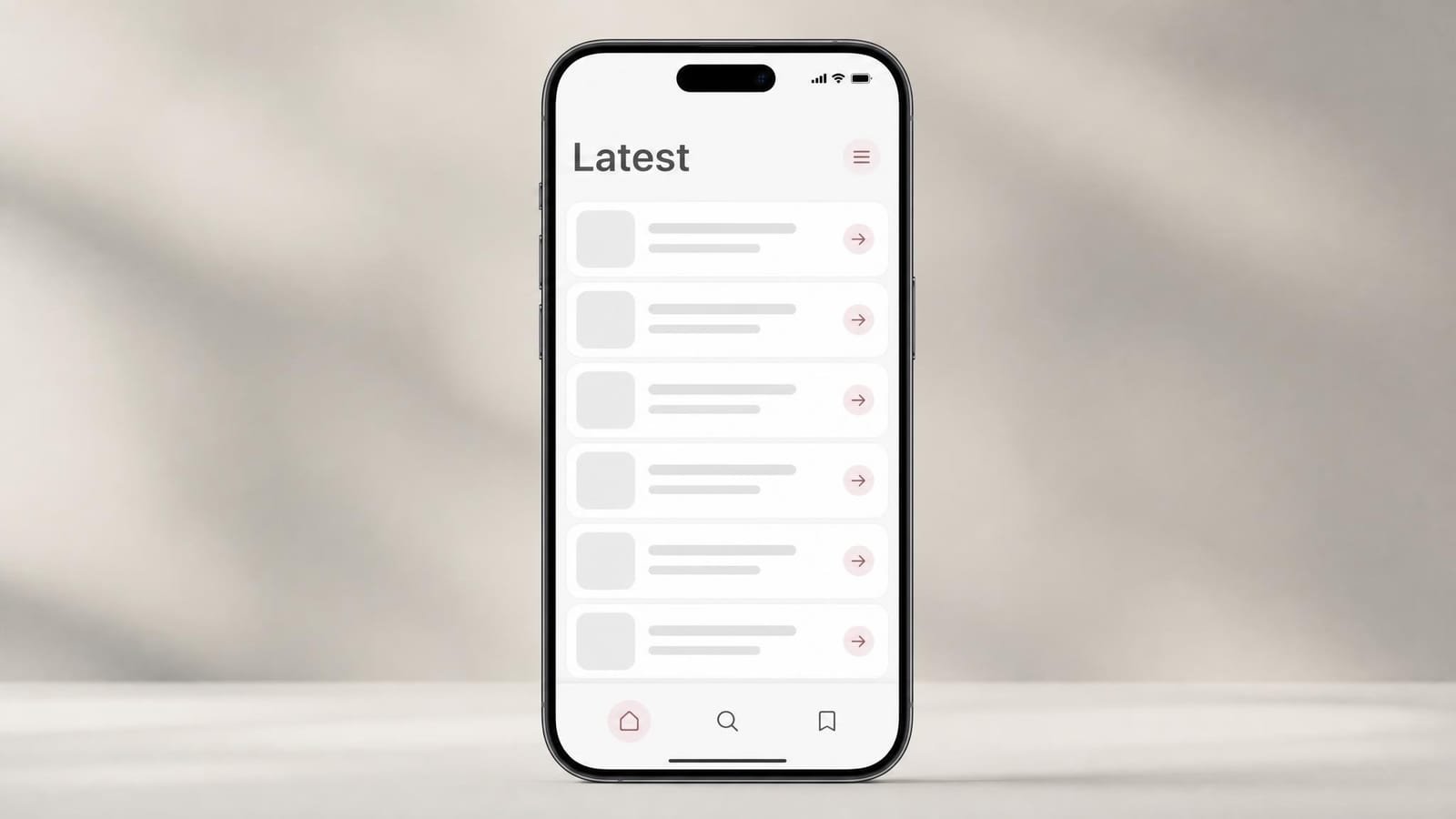
iOS settings / list screen
Grouped rows inset to the same left and right margins, each control aligned to the column grid so the eye runs straight down the list.
A phone screen is not a blank rectangle; it is a rectangle the system has already partly claimed. The mobile app layout grid marks both halves of that bargain — the safe areas the device keeps for the status bar, notch, home indicator, and tab bars, and the responsive column grid your content lays out within what is left. Get the insets right and your buttons stay tappable on every handset; get the columns right and the layout reads as ordered rather than improvised. Here is what the overlay draws, the maths of columns and insets, the history from fixed-pixel iPhones to safe-area layout, and when the grid helps rather than hinders.
One of the 82 composition overlays every visual artist should know and use.
On an iOS screen the overlay reserves the status bar and dynamic island at the top and the home indicator at the bottom, then lays a four-column grid in the safe area between.
The overlay draws a device frame with rounded corners and then carves out everything the system reserves: the status bar across the top, the notch or dynamic island punched into it, the navigation bar or large-title bar below it, the tab bar at the foot, and the home indicator or gesture region beneath that. What remains is the safe area — the region where interactive content can sit without being clipped by hardware or covered by system chrome. It is not a drawing aid for the icons and text inside; it is the architecture those elements have to respect.
Within the safe area the overlay lays the responsive column grid: consistent left and right margins, a set of equal columns, and matching gutters between them. On a phone this is most often four columns; widen to a tablet and the grid expands to eight, and to a desktop-class window it reaches twelve. Content snaps to whole columns, so a card spans two of four on a phone and four of eight on a tablet while keeping the same proportion. Grid Maker Pro lets you pick the device, set the margin and column count, and adjust the insets so the template matches the screen you are actually shipping rather than a generic frame.
One practical point matters: the safe-area insets are values the device reports, not fixed numbers. A handset with a tall notch reserves more at the top than one with a flat status bar, and rotating to landscape moves the insets to the sides. The overlay therefore treats the insets as adjustable, so you can check a single design against the most and least generous devices you intend to support.
The responsive grid is one equation: the screen width is the margins, the columns, and the gutters added together.
screen width = 2 × margin + (n × column) + ((n − 1) × gutter)
column = (width − 2 × margin − (n − 1) × gutter) ÷ n
n: 4 (phone) → 8 (tablet) → 12 (desktop)
With the margin and gutter fixed, the column width falls out by division, exactly as it does on the web — only the breakpoints differ.2 Material's spacing system sets margins, gutters, and component sizes in multiples of 8dp, with a 4dp subgrid for fine adjustment, so the whole layout sits on a regular step.2 The safe-area insets are a separate quantity layered on top: the device reports a top, bottom, and side inset, and the usable height is the screen height minus the top and bottom insets.1 The arithmetic is plain; the discipline is keeping every dimension on the step while letting the insets vary per device.
From fixed pixels to safe areas. Early iPhone layouts targeted one screen size in absolute pixels. The arrival of the iPhone X in 2017, with its display notch and rounded corners, forced a shift to layout driven by safe-area insets, and Apple's Human Interface Guidelines codified the status bar, home indicator, and inset model that designers now treat as a starting input.1 Android introduced notched devices the following year and exposes the same idea through its inset APIs.
Material and the responsive grid. Google's Material Design (2014) brought a documented responsive column grid, density-independent units, and the 8dp spacing system to Android, and Material 3 carried that discipline forward with updated layout and adaptive guidance.2 The column-and-gutter model it formalised is the same one taught for print and web,4 and the discipline of setting type and space against a grid runs through the standard design-school texts.7
The Swiss inheritance. The spacing-system discipline behind these guidelines descends directly from mid-century Swiss typography — the grid as an objective ordering device codified by Müller-Brockmann.3 Interface designers inherited it through usability writers who applied the same clarity to screens: Jenifer Tidwell catalogued the recurring layout patterns,5 and Steve Krug argued that a screen should make its structure obvious enough to spare the user any thought.6
Fragmentation makes it a guideline, not a guarantee. Screen sizes, aspect ratios, and inset values vary so widely that no single reference frame is authoritative. The grid plans a layout; only testing on the smallest and largest target devices confirms it. The grid is a servant to break when the content demands it, a point Timothy Samara makes for layout in general.8
Insets are not constants. Safe areas change between devices and shift to the sides in landscape, so a layout pinned to one device's numbers breaks on the next.1 An over-rigid grid also fights dynamic type and accessibility scaling, clipping or overlapping content when a user enlarges text — a reason Krug's caution about friction applies as much to designers as to users.6
| If you want to... | Use the layout grid | Don't use it for... | Difficulty |
|---|---|---|---|
| Keep buttons clear of system UI | The marked insets keep tap targets out of the status bar and home indicator | Full-bleed media that is meant to run edge to edge | Intermediate |
| Lay out a list or settings screen cleanly | The column grid aligns rows, labels, and controls to a shared rhythm | An immersive game or canvas with no chrome | Beginner |
| Scale one design from phone to tablet | The responsive grid gains columns at each breakpoint so content reflows | A single fixed-size kiosk screen | Advanced |
| Hand a layout to developers | Margins, columns, and insets give engineering exact, shared values | An early mood board where structure is still loose | Beginner |
| Audit a screen for clipped or unsafe content | The overlay reveals anything sitting under the notch or behind a tab bar | Verifying accessibility scaling, which needs live testing | Intermediate |
Six contexts. The platform conventions are documented practice; the readings are analysis.
Grouped rows inset to the same left and right margins, each control aligned to the column grid so the eye runs straight down the list.
A card feed where every margin, gutter, and card corner is a multiple of eight, so the stack keeps an even, regular cadence.
A master list and a detail pane sharing an eight-column grid, the same content the phone showed in one column now reflowed into two.
Content begins below the carved-out island rather than under it, so a title is never half-hidden by the camera housing.
A tab bar reserved at the foot above the home-indicator inset, so the primary navigation stays in the thumb's natural reach.
Rotating to landscape moves the insets to the sides and lets the single column split into two, the grid adapting rather than stretching.
Placing a button or a heading where the notch, status bar, or home indicator sits means it is clipped or untappable on the devices that have those features — which is most of them.
A layout tuned to a single screen size and a single inset value looks right in the mockup and breaks on the smallest and largest handsets it ships to.
A 10dp gap on an 8dp system, or a margin that is not a whole step, leaves components subtly misaligned and makes the handoff to engineering noisy.
Pinning content to fixed positions fights dynamic type and text scaling: when a user enlarges the font, the layout clips or overlaps instead of growing.
Start every screen on the template: set the device, mark the insets, and lay the four-column grid before placing a single component. Snapping content to columns keeps lists, cards, and controls aligned, and reserving the system zones means nothing important ends up under the notch or behind the tab bar. The grid is also where you plan the responsive jump — decide now how the phone layout becomes the tablet layout, rather than discovering it late.
When one design has to serve both iOS and Android, design to the more constrained safe area and the shared 8dp step so the layout survives translation. The column grid is common ground across React Native, Flutter, and native, so express spacing in multiples rather than in device-specific pixels. Check the smaller of the two platforms' insets first; if it fits there, the roomier device is rarely a problem.
The grid is the contract at handoff. Margins, gutters, column counts, and inset values give engineering exact numbers to implement against the platform's safe-area and inset APIs, so the built screen matches the design rather than approximating it. Reading the layout as columns-plus-insets also makes responsive behaviour explicit: you know which elements span which columns at each breakpoint and where the layout reflows.
Learning the mobile grid teaches the transferable habit of designing within constraints you do not control. Overlay the template on screenshots of apps you admire to see how they reserve the system zones and align to columns, then build a simple list screen where every dimension is a multiple of eight and every tap target sits in the safe area. The discipline carries straight across to web and print layout.
"If something requires a large investment of time — or looks like it will — it's less likely to be used."
Steve Krug, Don't Make Me Think, Revisited (2014)6

Illustrative composites of how the tool gets used in practice — not quotes from named individuals.
I mark the safe area before I place a single pixel. A button that lands under the home indicator is the fastest way to fail a review, and the insets are the one thing you cannot fix in CSS later.
Four columns on the phone, eight on the tablet — once the team agrees on that, the responsive jump stops being a fight. We design the breakpoints, not three separate apps.
Everything on the 8dp step, nothing pinned so hard it can't grow. The moment a user bumps their text size, a rigid grid turns into a bug report.
Pick a device, mark the safe areas, and lay the responsive grid over your screen in your browser. Free, no signup.
Launch Grid Maker Pro →You can use the mobile app layout grid overlay here for nothing, today and always. What a browser still can't do is get the picture itself onto paper — that needs a camera. The Grid Maker Pro AR app floats your reference over the real page through your phone so you trace the outlines straight onto the surface, then build on them with the same overlays you use here.
Meet the AR tracing app → Free web tool, free forever · AR tracing is the separate paid app